What it does
One cycle, on repeat
Everything the module does is one cycle repeated forever. Once you understand these seven steps, every tab in the window makes sense — each one just feeds a piece of this loop.
- 1 TO NPC Walks the Temple → NPC path you recorded.
- 2 TALKING Says keyword 1, 2 and 3 to the NPC, one every keyword delay.
- 3 WAITING TP Waits for the NPC to teleport you into a training room.
- 4 WALKING ROOM Detects which room you landed in and waits the room entry delay.
- 5 HUNTING Loops the room path until the room kicks you back to temple.
- 6 RESTING Back at temple — waits until you are out of fight.
- 7 RECHARGING Refills any potion below its threshold, then restarts the cycle.
When the recharge step finds nothing to refill, the cycle counter goes up and — if Auto restart is on — step 1 begins again.
Before you start
Four things you need ready
- An active MIKU plan with Infinity SM unlocked in the in-game Shop. Infinity SM is a gated feature — if your account loses access the window closes and any running cycle stops.
- You must be logged into the game. Start cycle does nothing while you are offline.
-
Know your trainer NPC and the
exact keywords it expects (for example
hi→training→SM Demonic Spider). - A working route in the bot's Walking tab. Infinity SM imports its paths straight from there, so recording them once in Walking is the fastest way in.
Open the module from the SarahBOT window: it lives in the Events category as INFINITY SM. Everything you configure is saved automatically — there is no Save button.
Control tab
Temple position and timings
This is the tab you land on. It shows the live status of the cycle and holds the three settings that make the loop work.
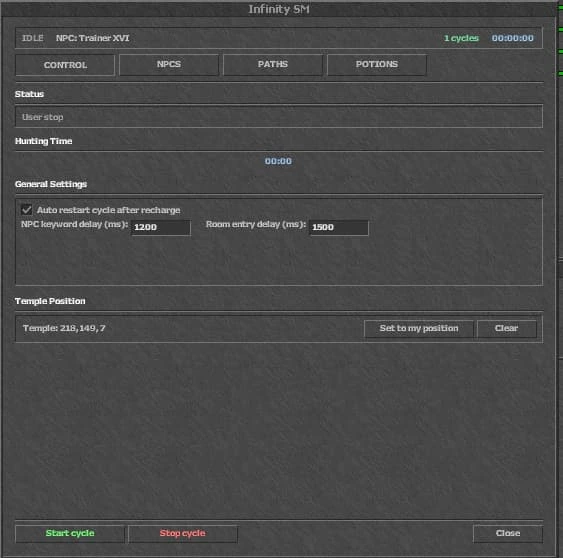
Set your temple position
Stand on your temple tile in game and click
Set to my position. The label updates to something like
Temple: 218, 149, 7.
This is the most important setting
— the module watches your position and, the moment you land within 5 tiles
of it while hunting, it knows the room ended and switches to resting + recharging.
Get this wrong and the cycle never closes.
Leave Auto restart checked
With Auto restart cycle after recharge on, the bot walks back to
the NPC as soon as the potions are topped up, forever. Uncheck it if you
only want a single run — the module then goes to
IDLE once the recharge finishes.
Tune the two delays
NPC keyword delay (default
1200 ms) is the pause between each keyword the bot says. Too
fast and the NPC ignores you.
Room entry delay (default
1500 ms) is how long it waits after the teleport before walking,
so the client has time to load the new floor. Raise both if your ping is
high.
NPCs tab
Profiles, keywords and rooms
An NPC profile is the unit of configuration: a name, up to three keywords, a path from temple to that NPC, and a list of rooms it can teleport you to. You can keep several profiles and switch between them by clicking one in the left list.
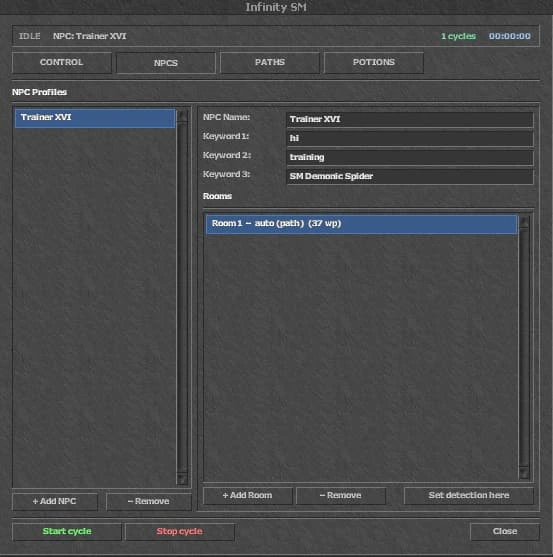
Create the profile
Click + Add NPC. A New NPC entry appears in the left
list and is selected automatically. Type the real name in
NPC Name — it is only a label for you, so use whatever you recognise
(Trainer XVI in the screenshot).
Fill in the keywords
Keywords are said in order, 1 → 2 → 3, and empty ones are skipped. In
the screenshot that is hi, then training,
then SM Demonic Spider — exactly what you would type by hand
to get teleported. If the NPC only needs two words, leave
Keyword 3 empty.
Add a room
Click + Add Room. Each room is one destination the NPC can
send you to. The row shows its name, its detection point and the size
of its path — Room 1 — auto (path) (37 wp) means no detection
point was set, so the module recognises the room by its waypoints instead.
Optionally pin a detection point
Get teleported into the room manually, stand anywhere inside it and
click Set detection here. The row switches from
auto (path) to real coordinates. You only need this when one
NPC can send you to
several different rooms and the
bot has to tell them apart — with a single room, the module simply assumes
you landed in it.
Paths tab
The two routes every profile needs
Every NPC profile needs two separate paths, and this tab edits one at a time. The Selection box at the top always tells you which NPC and which room you are editing — it follows what you picked in the NPCs tab.
Temple → NPC
Walked once at the start of each cycle. Starts on your temple tile and ends standing next to the NPC. Played from first to last waypoint, then the dialog begins.
Inside Room (loop)
Belongs to the selected room and repeats endlessly while hunting. Make it a closed circuit so the last waypoint leads back into the first one.
Record the route in the Walking tab
Infinity SM does not record on its own — it borrows from the bot's Walking module. Build the route there as usual (walk it, add your use/rope/ladder actions), then come back here.
Pick the target, then Import Walk
Click Temple -> NPC or Inside Room (loop) so the right list is showing, then hit Import Walk. Import replaces — it wipes the current list and copies in the Walking waypoints, actions included. Import the temple route first, then rebuild the room route in Walking and import that one too.
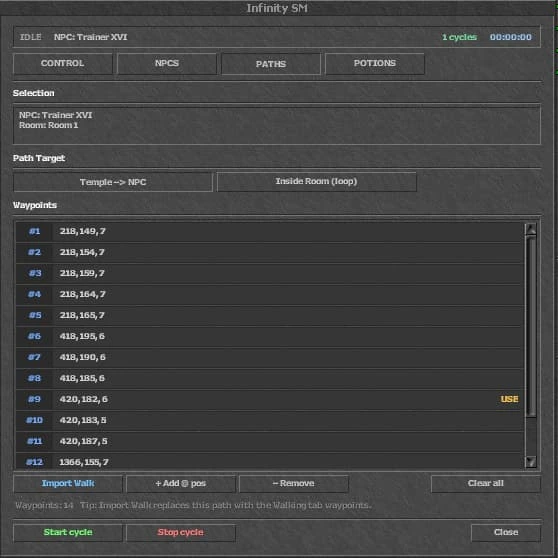
Check the tags on the right
Waypoints that carry an action show it in the right column.
USE on 420, 182, 6 in the screenshot is a ladder
or stairs the character has to click to keep going. Those tags come from
Walking, so if a stairway is missing here, fix it there and re-import.
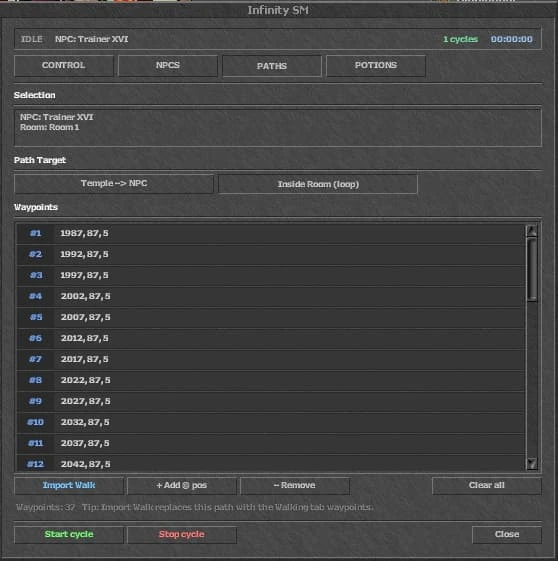
Touch up without re-importing
+ Add @ pos appends your current tile to the end of the list —
handy for extending a loop. Click a row to select it and
- Remove deletes just that waypoint.
Clear all empties the whole path. The counter under the list (Waypoints: 14) confirms what you ended up with.
Potions tab
Automatic recharge between cycles
Optional, but it is what turns the module into a truly unattended loop. Once you are back at temple and out of fight, any potion below its threshold gets topped up before the next run starts.
Add a potion row
Click + Add potion, then drag the potion from your backpack onto the item slot on the left of the row. Right-click the slot to clear it.
Fill the four fields
Label must match how the potion is
named in the server's recharge message — that is how charges get read back.
Cmd is the short code the server
expects (ghp, gmp, …).
< is the threshold: drop below
it and a recharge is triggered.
refill is how many charges to buy.
Understand the command it sends
With ghp, threshold 2000 and refill
3000, the bot says
!cargar ghp,3000 whenever charges fall under 2000. Type that
command by hand once in game to make sure it is the right syntax for your
server before leaving the bot alone.
Verify with Check charges
Check charges asks the server for the current count of every configured
potion. The charges: label on each row turns green when you
are above the threshold and red when you are below it.
Run it
Start, watch, stop
Select the NPC and press Start cycle
Make sure the profile you want is highlighted in the NPCs tab, then hit the green Start cycle at the bottom. It works from any tab. If you press it while standing somewhere else, the bot will still walk your Temple → NPC path from wherever it is — starting on your temple tile is always the safest.
Watch the first lap
Do not walk away on run one. Follow the status line through
TO NPC → TALKING → WAITING TP →
HUNTING. That single lap exposes every bad waypoint,
missing keyword and wrong temple tile in one go.
Stop whenever
Stop cycle cancels the dialog, stops the walker and returns to
IDLE — the status line will read
User stop. Close only hides the window; it does not
stop a running cycle. Logging out stops it too.
Status states
Reading the badge in the header
The coloured badge on the top-left is the fastest way to see what the module is doing right now.
| IDLE | Nothing running. This is the state after Stop cycle. |
| TO NPC | Walking the Temple → NPC path. |
| TALKING | Sending the keywords to the NPC. |
| WAITING TP | Keywords sent, waiting for the teleport. |
| WALKING ROOM | Teleport detected, room entry delay running. |
| HUNTING | Looping the room path. The timer shows time in room. |
| RESTING | Back at temple, waiting for the fight flag to clear. |
| RECHARGING | Sending recharge commands for low potions. |
| ERROR | Something blocked the cycle. Read the status line. |
FAQ
When something does not line up
It says “NPC did not teleport” and stops.
It says “Teleported — room not recognized”.
It says “Missing path to NPC”.
The cycle never ends — it just keeps hunting.
It gets stuck on “Resting — waiting infight to clear”.
Import Walk did nothing.
Where is my configuration stored?
/conf/settings/necroxia_infinity_sm.json inside the client
folder. Everything saves the moment you change it, so you can back up
or share that file.
Still stuck? Active subscribers can DM the
SarahBOT Discord bot directly,
or ask in #support.